
Coming from Windows
A Start menu on the Windows key, a dock, a top bar with the clock: the habits you already have, in a calmer design.

Ordinis OS
Ordinis OS is our own desktop operating system, built on Debian 13. A light Aurora look, the Ordinis Start menu, a glass dock, four Spaces and the Ordinis apps, all in the same design you see across every Ordinis product.
Who it’s for
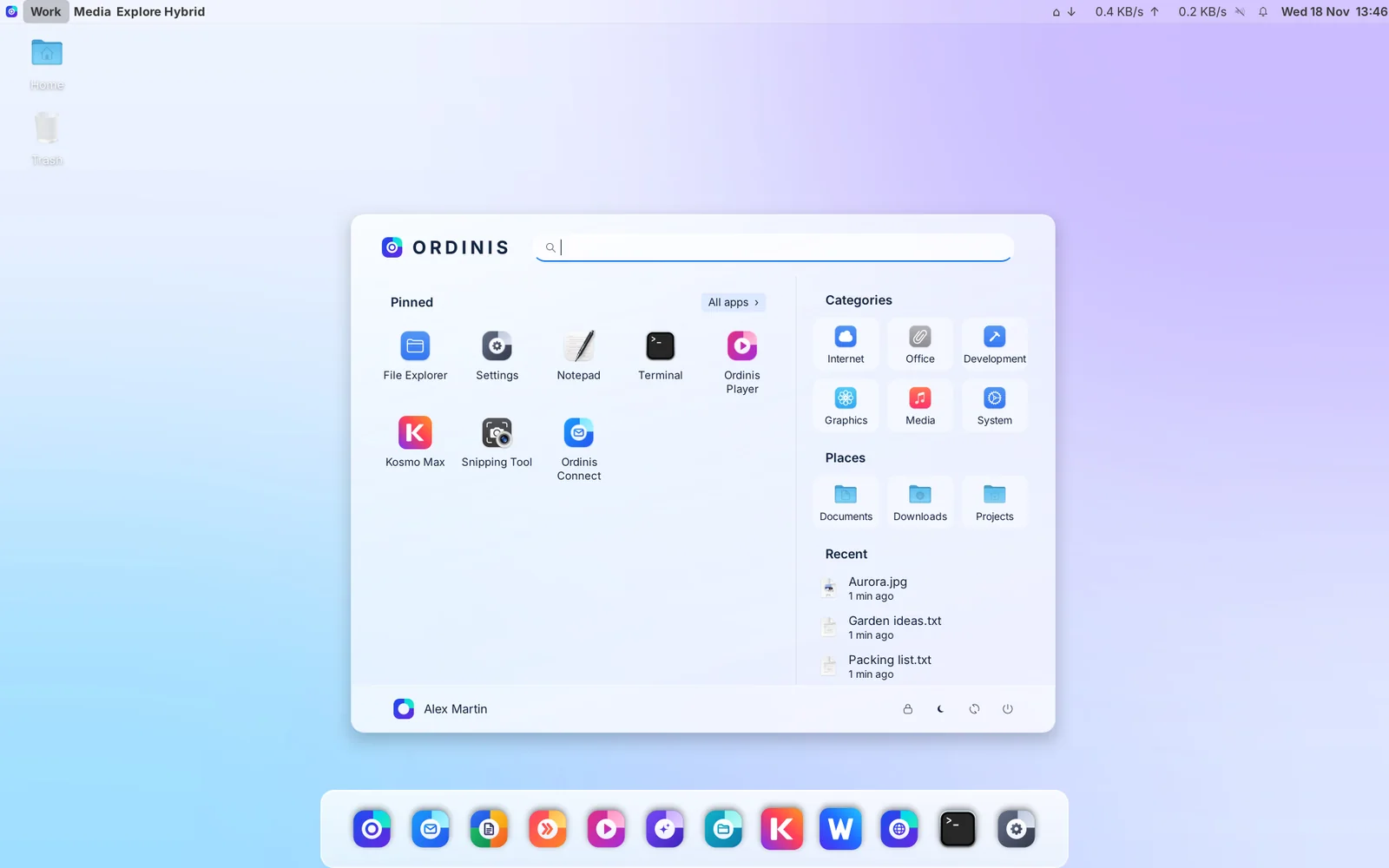
A Start menu on the Windows key, a dock, a top bar with the clock: the habits you already have, in a calmer design.
Four Spaces keep work, media, browsing and everything else apart, each with its own windows.
Office, Connect, GO, Player, Vault, Atlas and the Kosmo apps share one design on one desktop.
Discover the desktop
Familiar where it matters, quieter everywhere else. Ordinis OS keeps the habits you already have and removes the noise around them.
Aurora interface
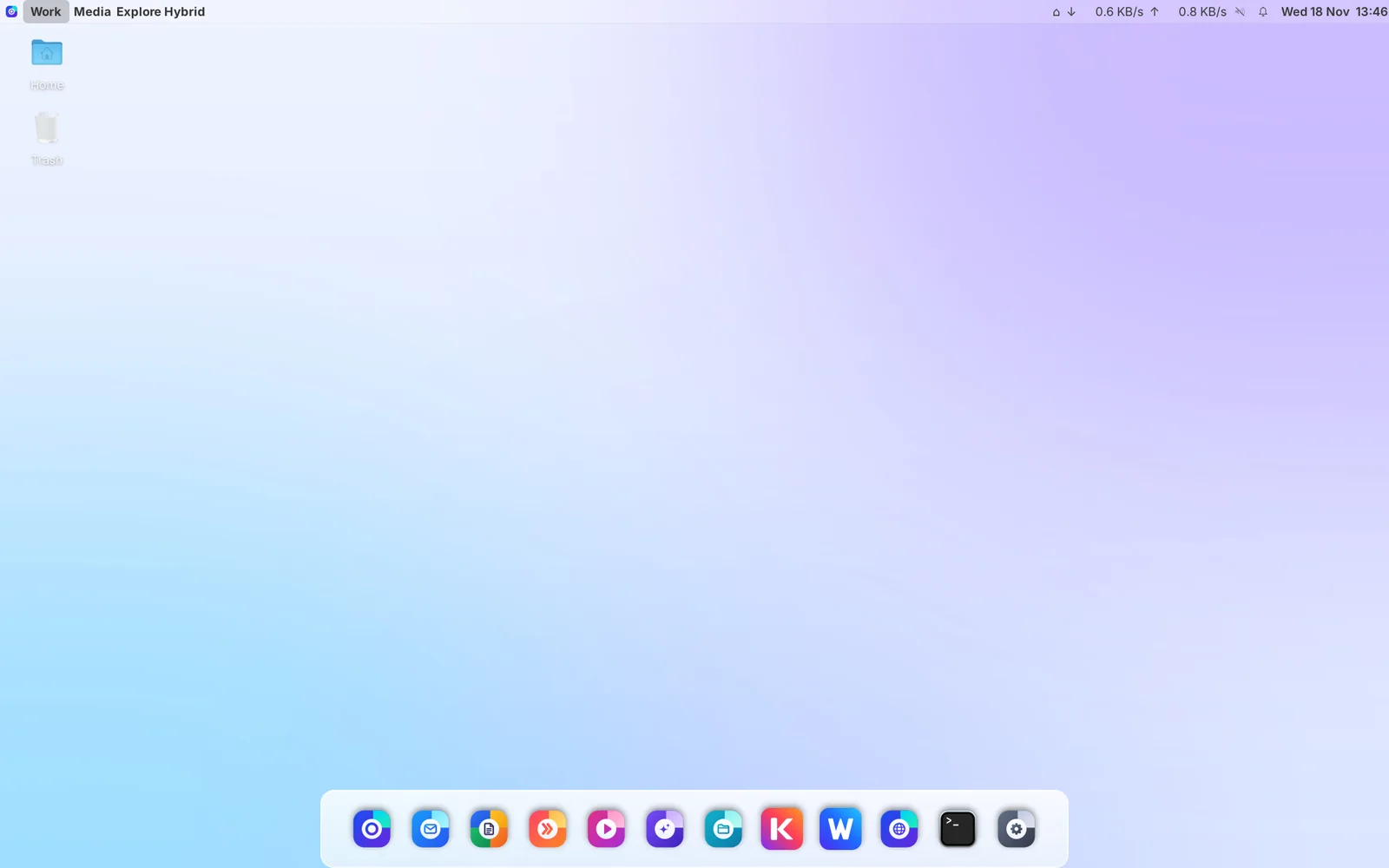
A frosted top bar, translucent menus and a light colour scheme drawn from the Ordinis mark. Blur and shadows come from the Ordinis Aurora compositor.
Start and Spaces
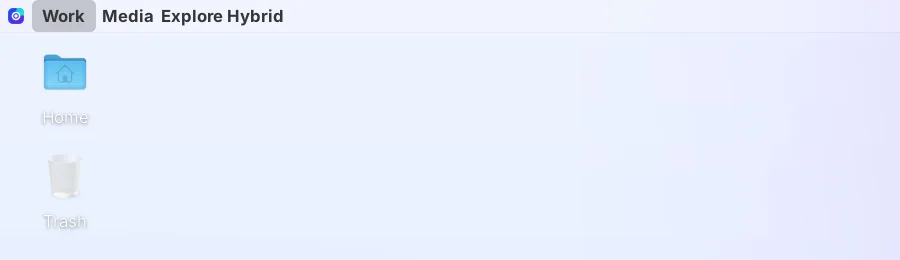
Press the Windows key: type to search, or pick from pinned apps, categories, places and your recent files. Work, Media, Explore and Hybrid sit in the top bar, each with its own set of windows, so a film never ends up in the middle of your spreadsheets.
Sign-in
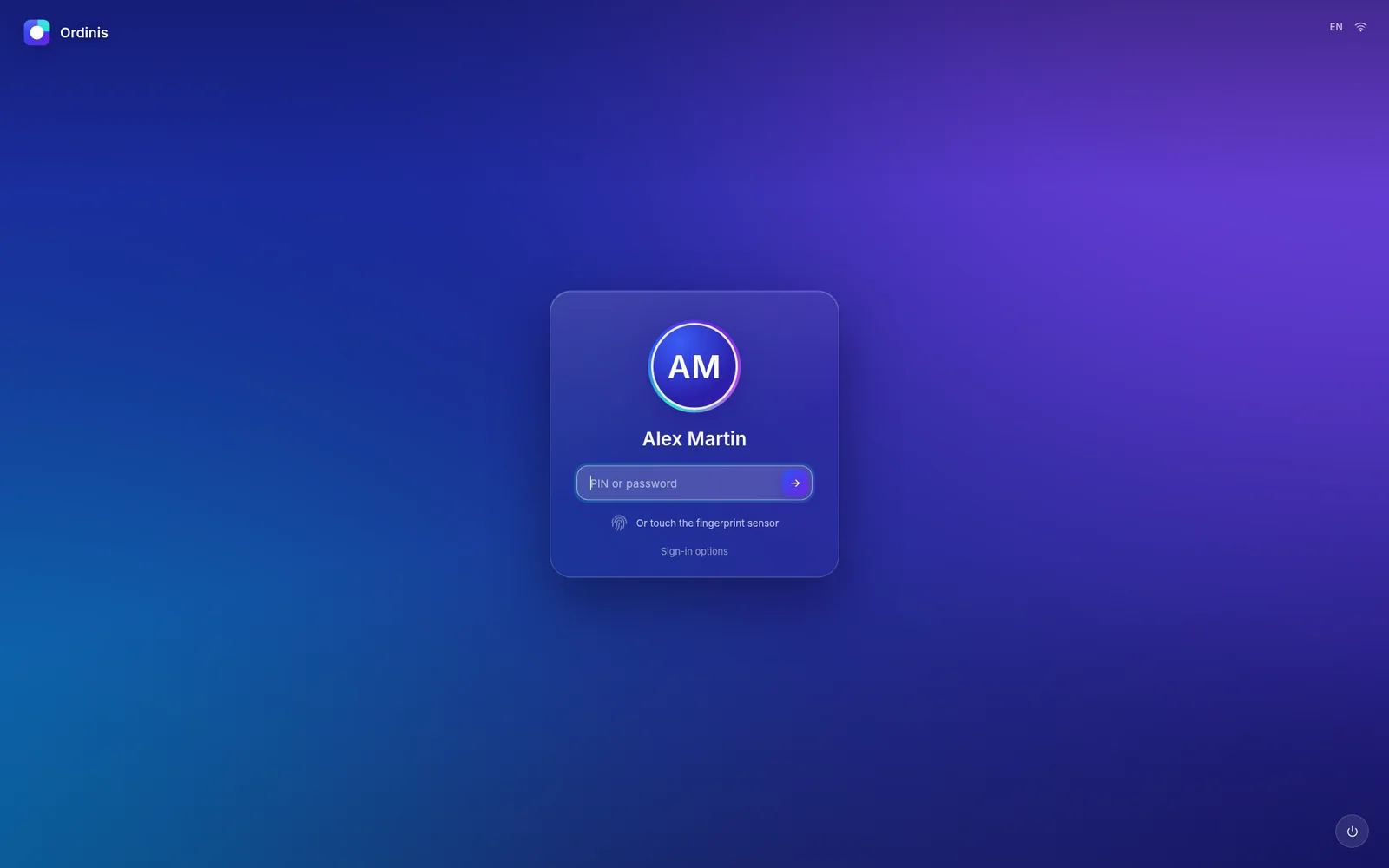
The boot menu stays hidden, so the PC goes directly to a clean Ordinis sign-in. Sign in with your password, a short PIN or your fingerprint.
Ordinis Settings
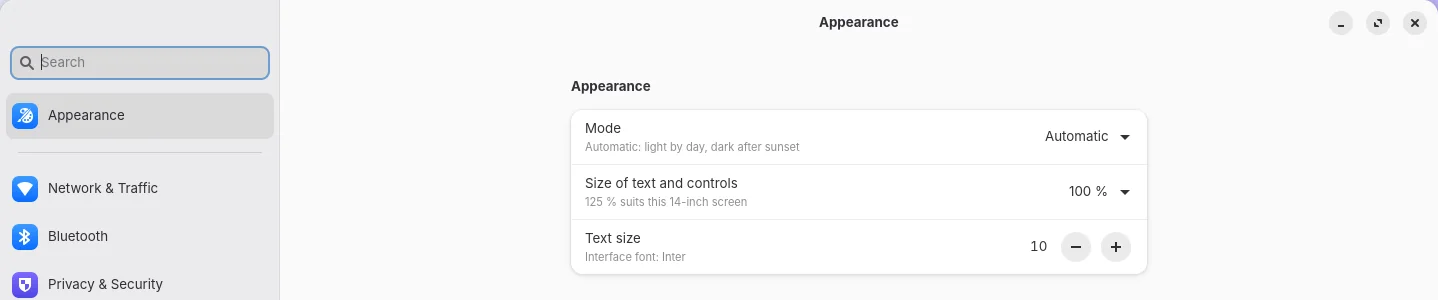
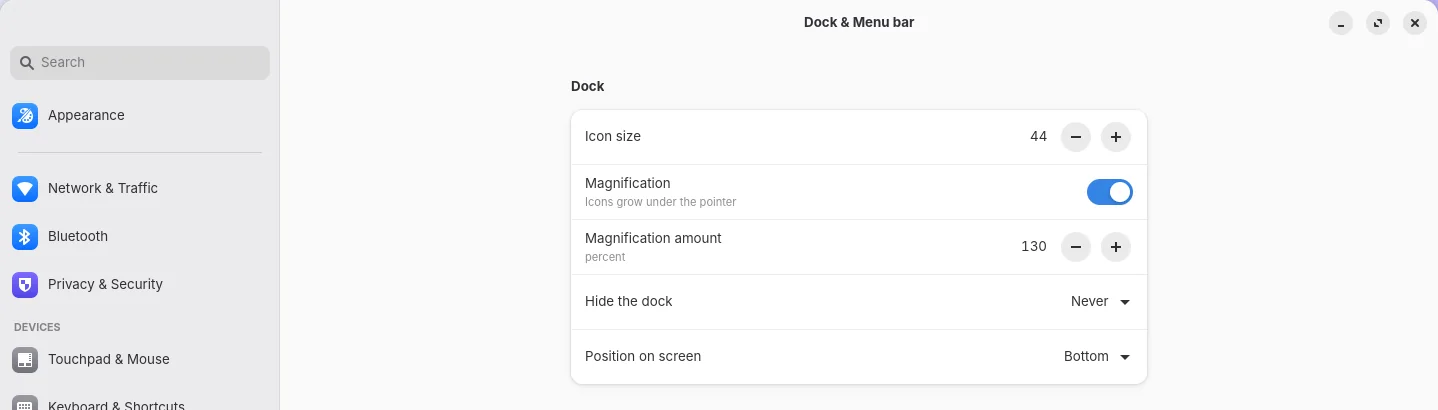
Ordinis Settings brings appearance, network and traffic, Bluetooth, privacy and security, devices, the dock and menu bar, users and software updates together in one clear app.
Light or dark, text size and scale, desktop pictures, and how the dock looks and behaves: icon size, magnification and position.
Integrated applications
Ordinis OS is home to the Ordinis family, next to dependable open-source essentials.
Every Ordinis app shares the Aurora look, so the desktop feels like one place.
Files, Terminal, a text editor and a classic web browser are always there.
Ordinis Vault keeps private files encrypted on your own computer.
Desktop tools
Work, Media, Explore and Hybrid sit in the top bar as a pager. Each Space keeps its own windows; switching is one click or Ctrl+F1 to F4.
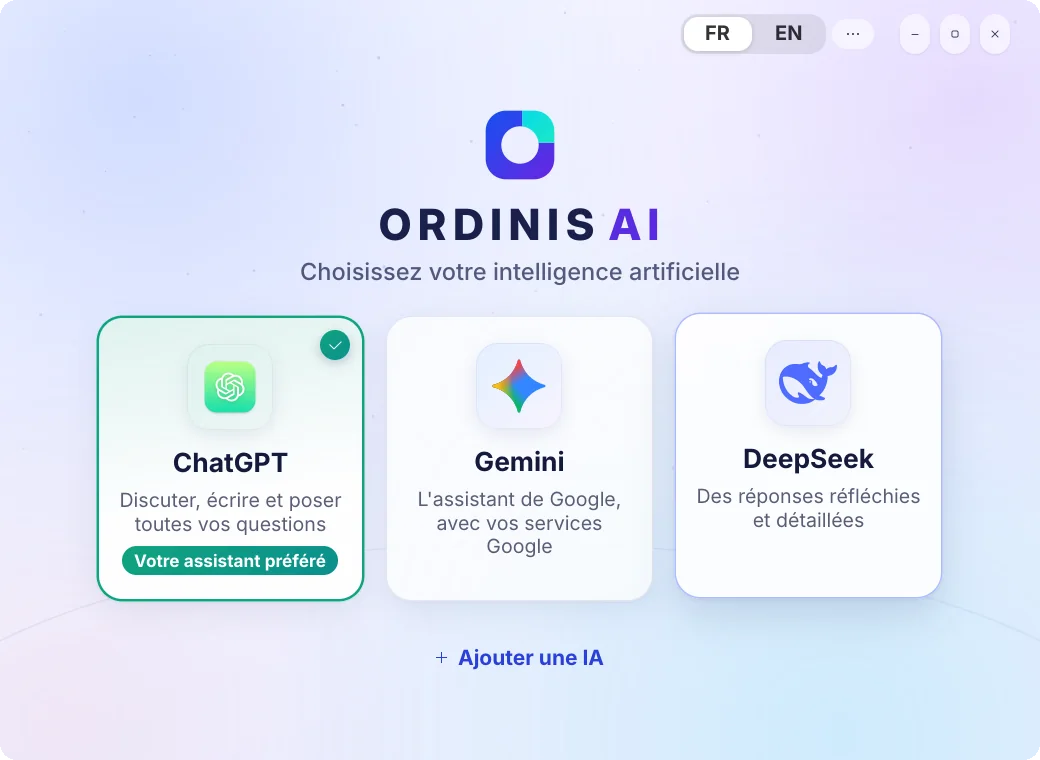
One click on the Ordinis AI icon opens a small chooser with ChatGPT, Gemini and DeepSeek. Click a card and that assistant opens in its own Ordinis GO window of the same size. Add another assistant from the catalogue, or a site of your own.
Ordinis on Windows
Ordinis OS is a Linux operating system and does not install over Windows. On Windows 11 PCs, the Ordinis Shell for Windows brings the same top bar, dock and Start menu to Windows, and gives the Windows taskbar back when you quit it.
Press the Windows key: a greeting banner, one search box for apps, files and settings that also does sums, your pinned apps, Resume for recent files and your folders. A side panel holds quick actions and today.
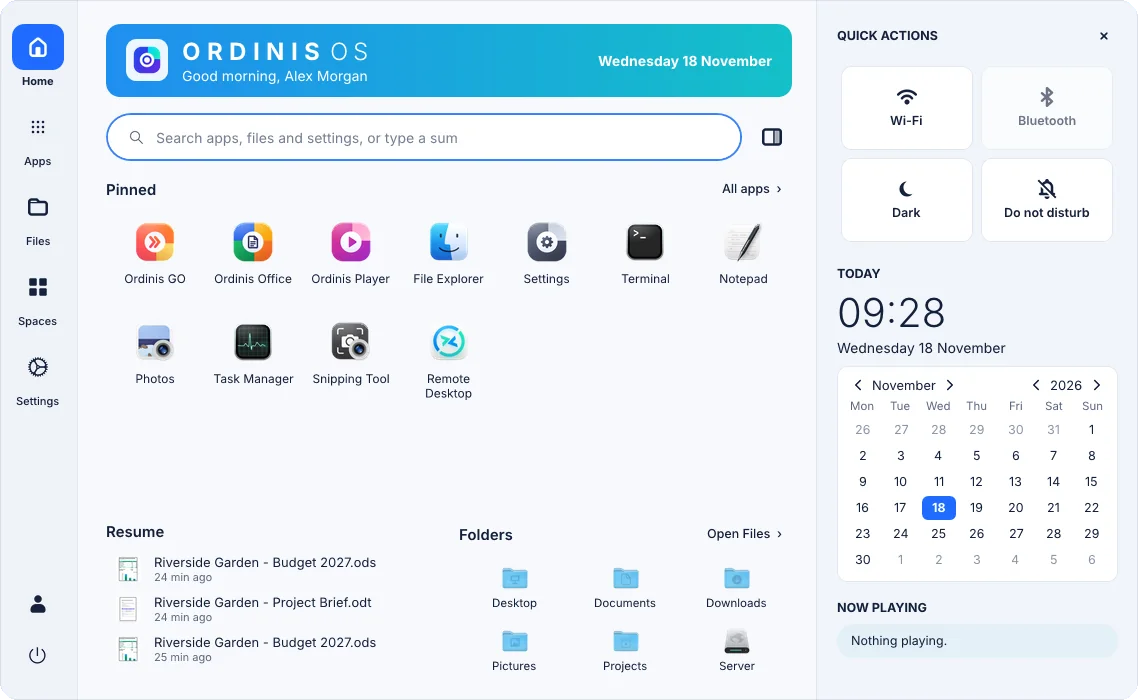
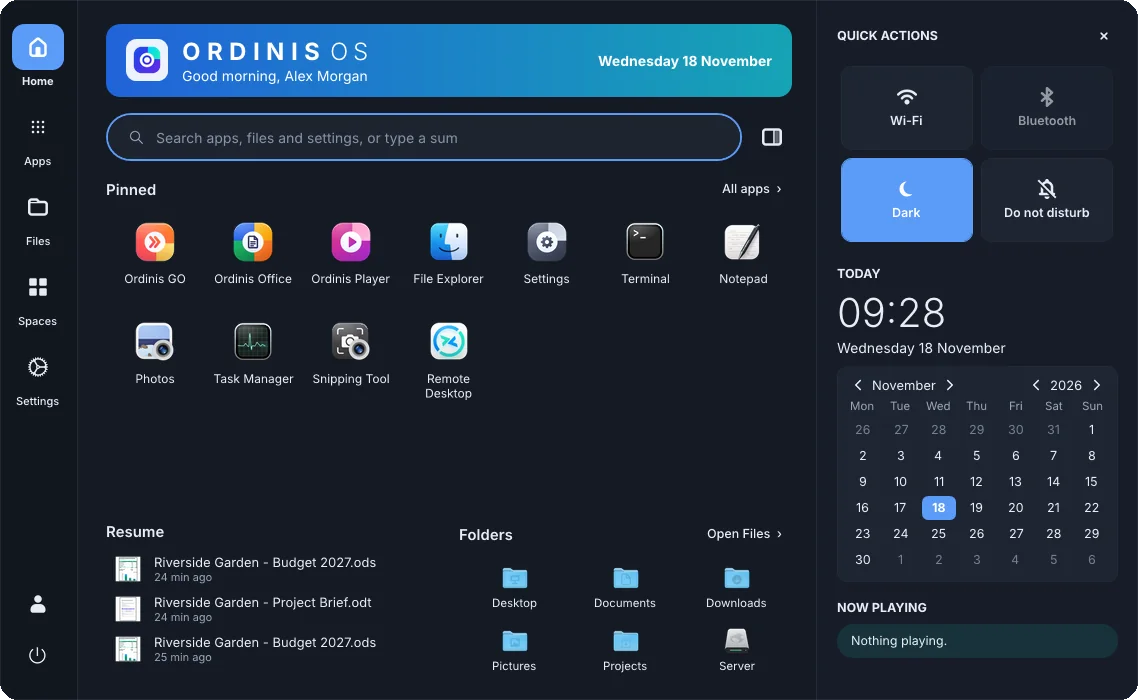
Glass top bar, dock with drag-to-reorder, the Ordinis Start menu and the Ordinis lock screen.
Quitting or uninstalling restores the Windows taskbar, theme and wallpaper. If the shell stops unexpectedly, the taskbar comes back on its own.
Pin any Windows app to the Ordinis dock and find all of them in Start. Ordinis apps appear there when they are installed.
Privacy and security
Your password, PIN and fingerprint are checked on the computer itself.
Ordinis packages come from a signed package archive whose key is trusted only for Ordinis packages.
Ordinis OS itself sends nothing to an AI service. The Ordinis AI chooser only opens the assistant you pick.
Technical information
Ordinis OS is built on Debian and on open-source projects including XFCE, Plank, picom, Orchis and Papirus. Ordinis OS is an independent project and is not affiliated with or endorsed by the Debian Project. Debian is a registered trademark of Software in the Public Interest, Inc.
Part of the family
Ordinis Office opens documents, spreadsheets and presentations, in the same light design.
Mail, calendar, people and tasks, encrypted on the computer.
The Ordinis browser, which also opens the assistants you pick in the Ordinis AI chooser.
On the dock, opening your audio and video files.
Private files encrypted on the computer, with a PIN guarded by the security chip.
Nine games in one app, pinned in Start.
Recent milestones
Support us
Ordinis is independent. If an app helps you, you can support its development.
Support usPayments are handled securely by Stripe.
Explore the family

An encrypted vault for your files on your own computer. Files are encrypted before they are stored and open only after you unlock it. No cloud, no account, no network.

Documents, spreadsheets, presentations, drawings, databases and formulas in one complete suite, based on LibreOffice®.

Outlook.com and IMAP mail, calendar, contacts and tasks in one desktop app, with your data encrypted on your own computer.

Plays what VLC plays, with a floating video window, one-click subtitles and audio tracks, and an optional music and film library.
 Ordinis GO
 Kosmo MAX
 Kosmo Wave
 Ordinis Atlas
