
People who want a VLC-class player
Open any file, folder, disc or stream and press play. The Light edition is just the player: nothing is scanned.

Ordinis Player
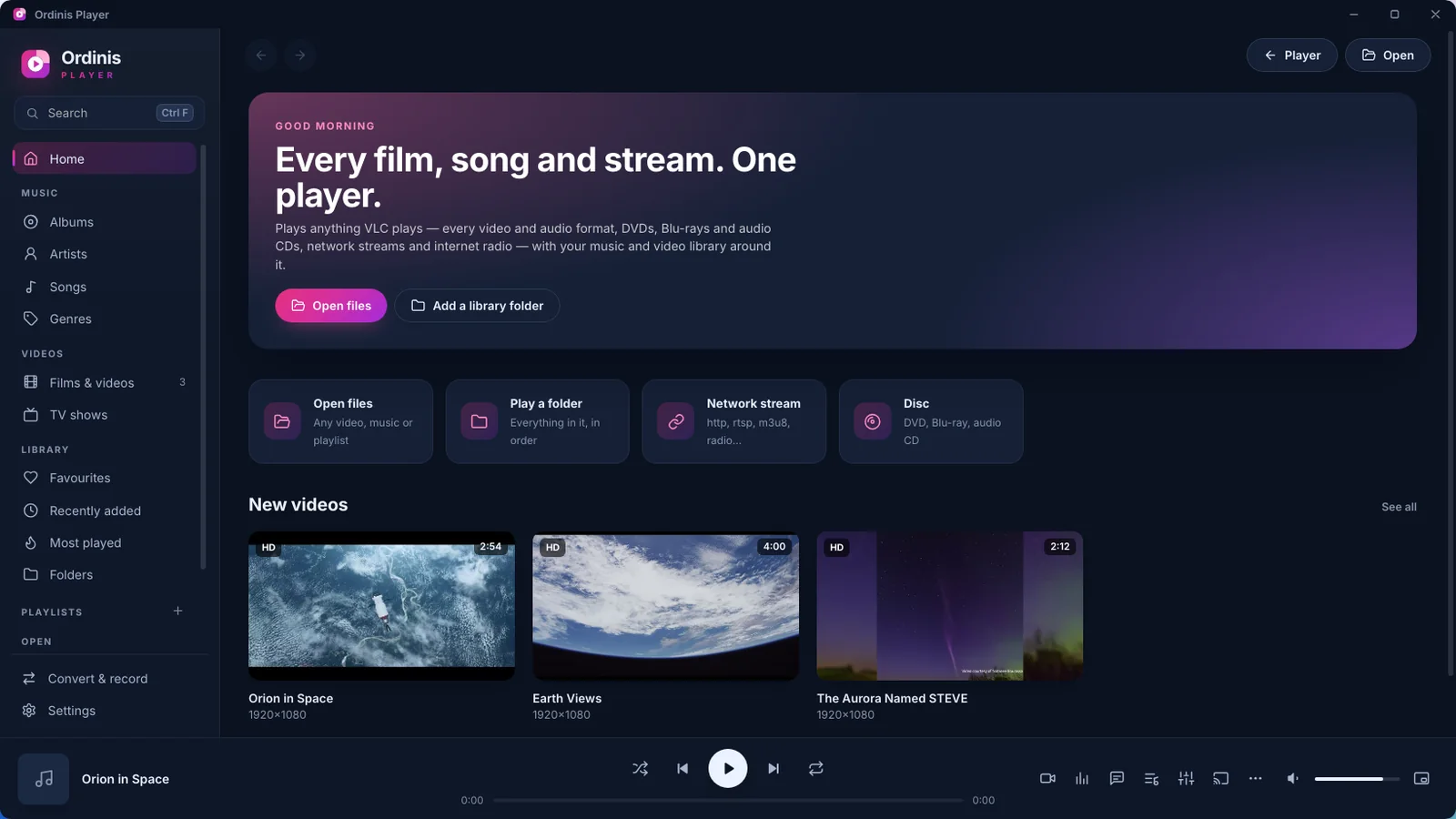
Ordinis Player is built on the VLC engine (libVLC), so it plays the formats VLC plays. Around it: the Aura glow, a floating video window, subtitle and audio-track menus one click away, five themes and, if you want one, a library for your music, films and series.
Who it’s for
Open any file, folder, disc or stream and press play. The Light edition is just the player: nothing is scanned.
The Full edition adds a library for the music, films and series on your computer and network shares.
The same player on Windows and on Linux, on the Ordinis OS dock and in the Ordinis Start menu on Windows.
Video
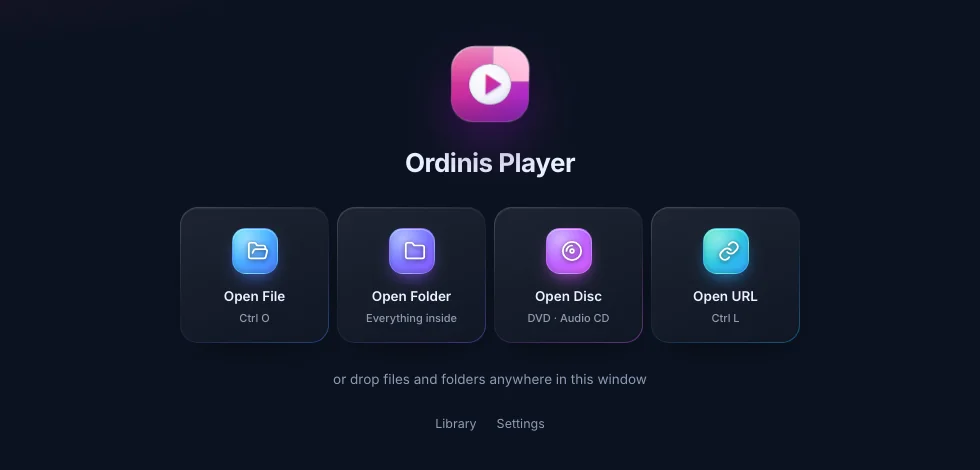
Open a file, a folder, a disc or a web address, or drop files anywhere in the window. During playback the frosted control bar fades away; you can also keep it visible.
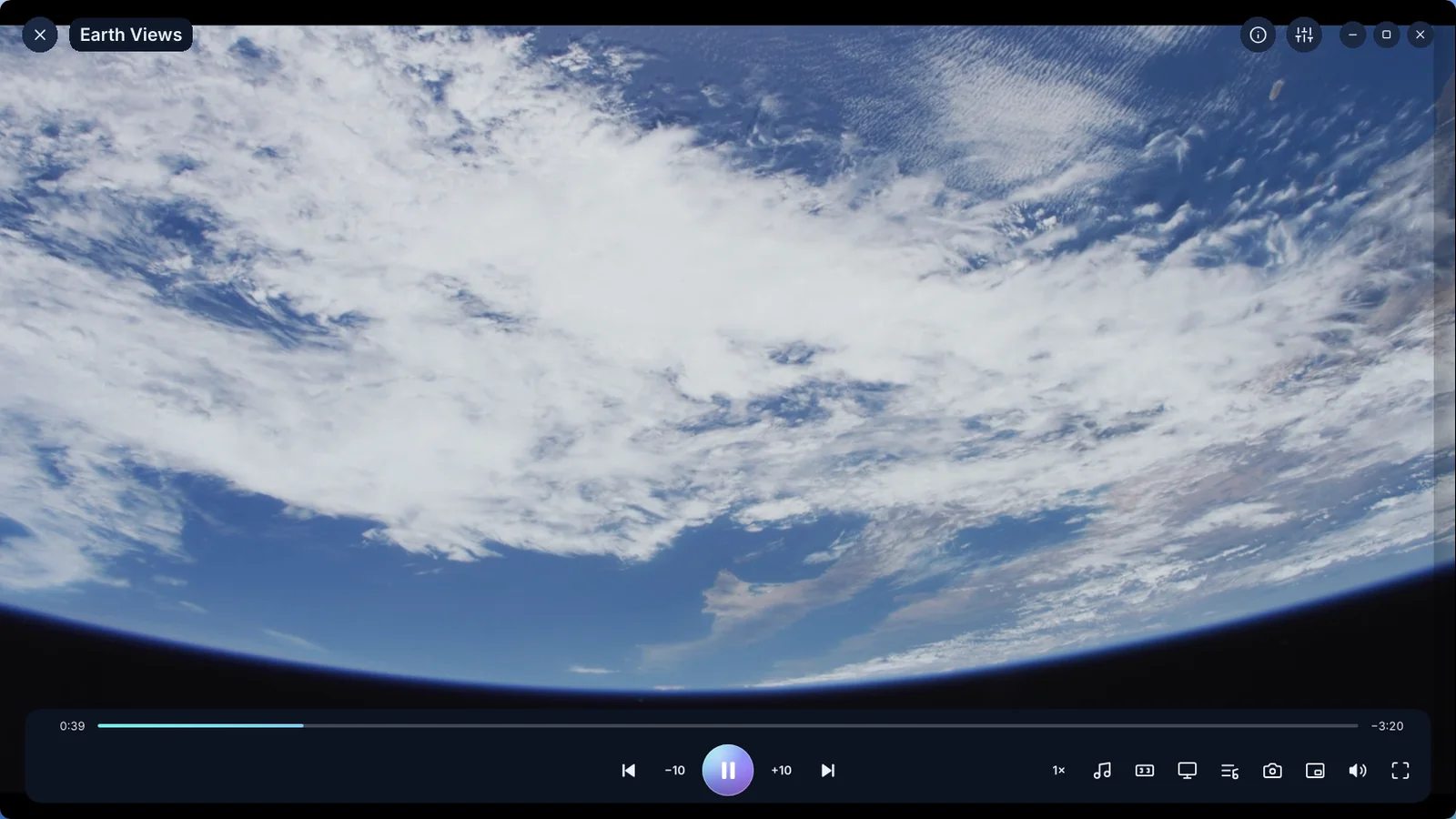
Keep a film or a stream playing in a frameless, rounded window above your other apps. Glass controls fade away until you need them.
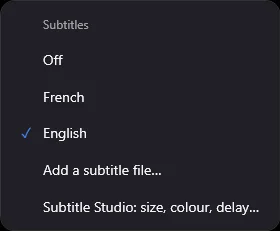
Point at the subtitle or audio button and the track menu opens: pick French audio, English subtitles, or add a subtitle file.
The Aura glow takes the colours at the edge of the picture and spreads them softly around the window, so the film seems to light up your desktop. The controls take on the picture’s colours too.
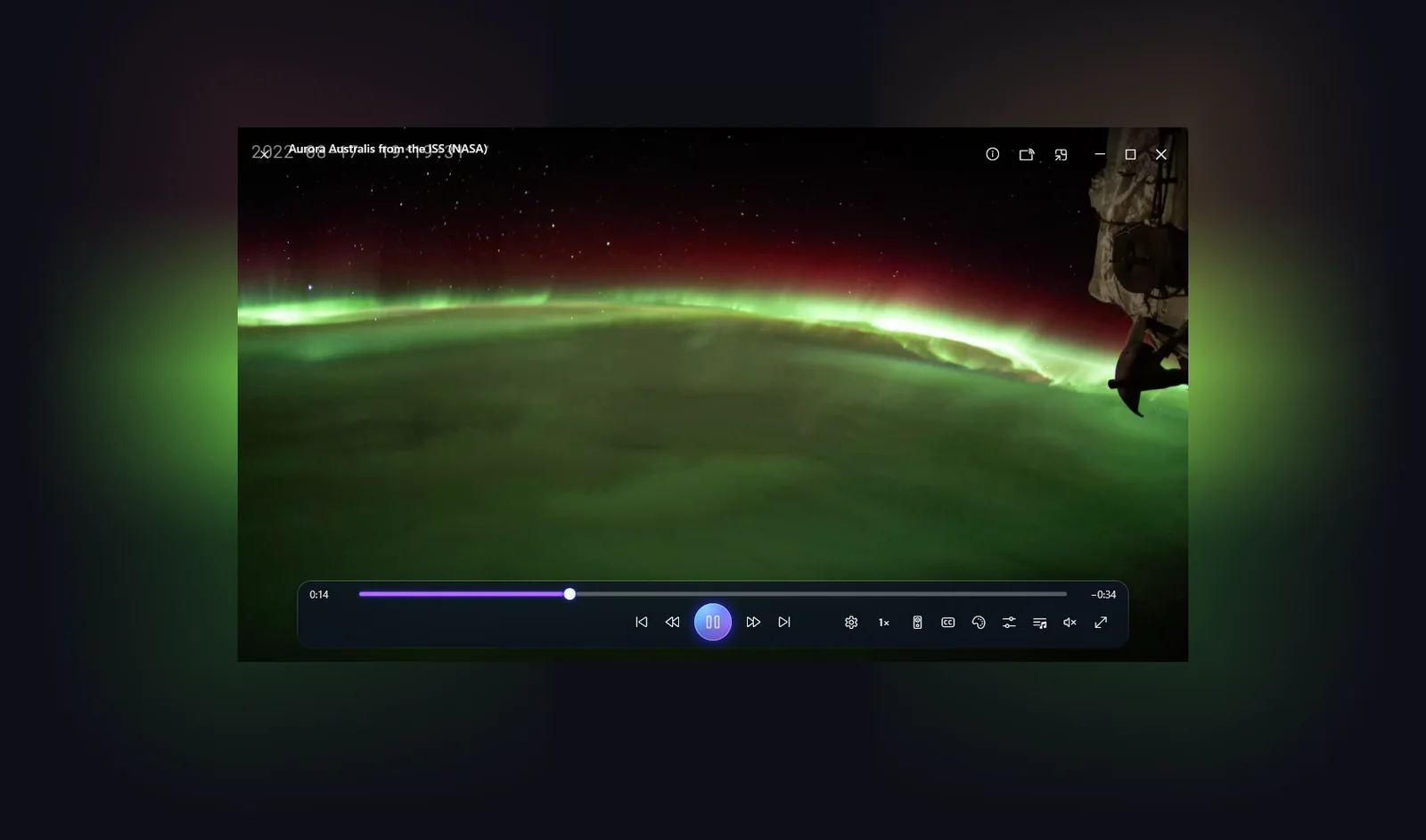
On Windows, Ordinis Dim softly darkens the desktop around a film playing in a window, like lowering the lights, and Ordinis Vivid gives the picture richer colour. Both can be adjusted or switched off.

Music and library
Add folders on your PC or network shares. Series are recognised from names like S01E02, with resume points and play counts.
Albums, artists, songs and genres; playlists and smart lists; synced lyrics; a 10-band equaliser and a sleep timer.
Music can float as a small mini player while you work.
Album covers, film posters, plots and episode details from your own .nfo files first, then TVmaze, Wikipedia, Wikidata and Apple iTunes. It can be switched off.
Night, Aurora, Rainbow, Midnight (true black) and System.
Convert to common audio and video formats, record a stream, or stream to your home network.
The player plus the library for music, films and series. Scans the folders you choose.
Just the player. Nothing is scanned. You can switch editions later in Settings.
Under the hood
The app around the picture is Ordinis’s own; the playback underneath is the VLC engine, and on Windows you can choose the Ordinis Media Engine instead.
Start screen, controls, library, Info panel, Aura, themes and settings. One shared core for Windows and Linux, so both work the same way.
libVLC 3 by VideoLAN plays the files and streams: the formats and containers VLC supports, discs and network streams. It is the default engine.
Ordinis’s own engine, written in Rust. On Windows, Settings › Playback lets you play your files with it; a file it cannot play yet goes to the VLC engine automatically.
Windows media keys, the media flyout and “Open with” on Windows; file associations for audio and video types on Linux.
Privacy and security
Ordinis Player plays your files on your computer. There is no account and no sign-in.
Files, the library, resume points and playlists are kept on your computer. Nothing is uploaded.
To find covers, posters and plots, the Info panel sends titles, years and artist names to TVmaze, Wikipedia, Wikidata and Apple iTunes. Switch it off and nothing is looked up.
The Light edition never scans your folders. The Full edition scans only the folders you add.
Platforms
Ordinis Player uses the VLC engine (libVLC) by VideoLAN. It is not VLC and is not affiliated with or endorsed by VideoLAN.
Part of the family
Ordinis’s own media engine, built for the Player. Choose it in Settings › Playback on Windows.
On the Ordinis OS dock and in the Start menu, opening your audio and video files.
Kosmo MAX is for the household’s shared films, series and live TV; Ordinis Player is for the files on your own computer.
Kosmo Wave plays the household’s music library from a home server; Ordinis Player plays any music file you open.
Recent milestones
Support us
Ordinis is independent. If an app helps you, you can support its development.
Support usPayments are handled securely by Stripe.
Explore the family

Ordinis’s own media engine, written in Rust: its own file readers, your system’s decoders and picture and sound kept in sync, inside Ordinis Player.

Your own films and series together with live TV, a TV guide, replay and public broadcasters’ catalogues, in one calm app for the whole household.

Your music library, live radio and podcasts in one app, light by day and dark at night, playing from your own home server.

A calm, light desktop built on Debian 13, with the Ordinis Start menu, a glass dock and four Spaces for different kinds of work.